
Exploded view drawing from a STEP file, with balloons and a bill of materials
Upload your STEP and the exploded view comes out: the parts pulled apart along their assembly axes, each with a numbered balloon, and the bill of materials beside it. Nothing to model or draw.
- Numbered balloons with leader lines, by number or by part reference
- Bill of materials in the same PDF and as CSV
- Title block with your logo, date, revision and author
- Free, and your STEP is not shared with anyone
What goes in and what comes out
| In | Out |
|---|---|
One STEP of the whole assembly, with all its parts (AP203, AP214 or AP242; .stp or .step), up to 64 MB | A PDF on A3 or A4 landscape: the exploded drawing, the bill of materials and the title block |
| The file from your CAD, a supplier or a customer | A CSV with the list, which any spreadsheet opens |
| Nothing but the file | A project file .composer.json to continue another day (the STEP is not inside) |
How it works
- Upload the STEP of the whole assembly. One file with every part in it, not one by one. An assembly of dozens of parts opens in seconds.
- Check the list. Composer reads the name of each part and, when it carries a seven-digit reference code, splits the reference, description and finish. If your names are different, the list comes out with them as they are and you adjust it row by row. It flags what does not add up: parts without a reference, different descriptions for one reference, generic names.
- Build the sheet. Choose how the parts separate, what the balloons show, and how many sheets you want.
- Download the PDF and, if you want it, the CSV.
An explosion that does not pass through parts
By default the parts are stacked in layers along the axis where the assembly is thinnest: for a plate with its mechanism, the depth. Parts at the same level that do not overlap stay side by side, and identical parts (four push buttons, a pair of screws) move together.
The rule underneath is a workshop one: a part only leaves in a direction if it does not have to pass through another part. Composer measures on the real geometry which side each part is least blocked on, and parts that are in the way of another leave further out, in disassembly order. If you want something else:
- Another type of explosion: stacked in line, proportional, from the center, or around an axis.
- Several explosions added together: the general one, plus a separate one for the hardware.
- By hand: you move a part and it takes with it what it carries.
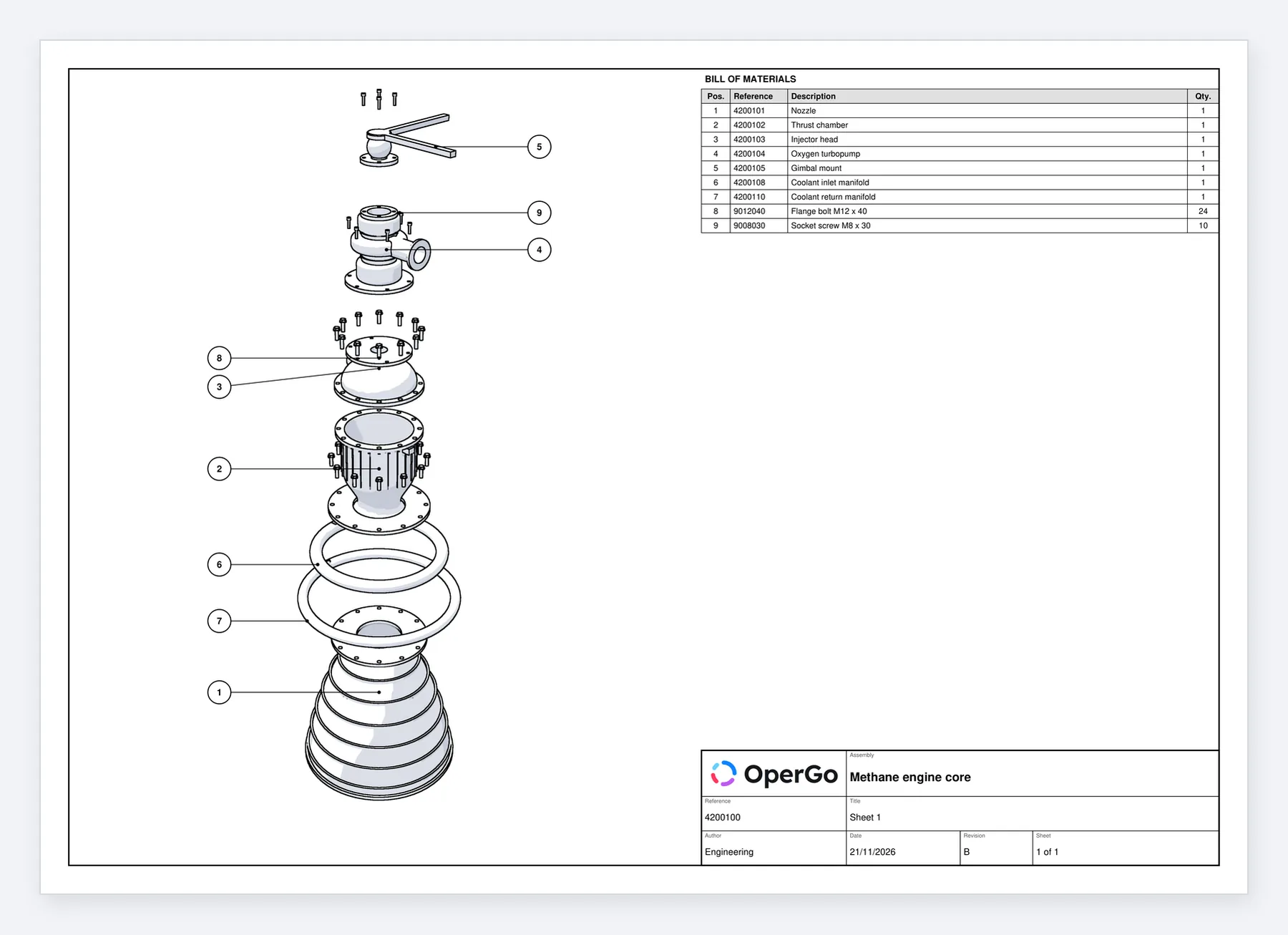
The sheet above is an "In line" explosion along the engine's axis, without explosion lines: with every part on the same axis, the order speaks for itself.
Balloons that do not collide
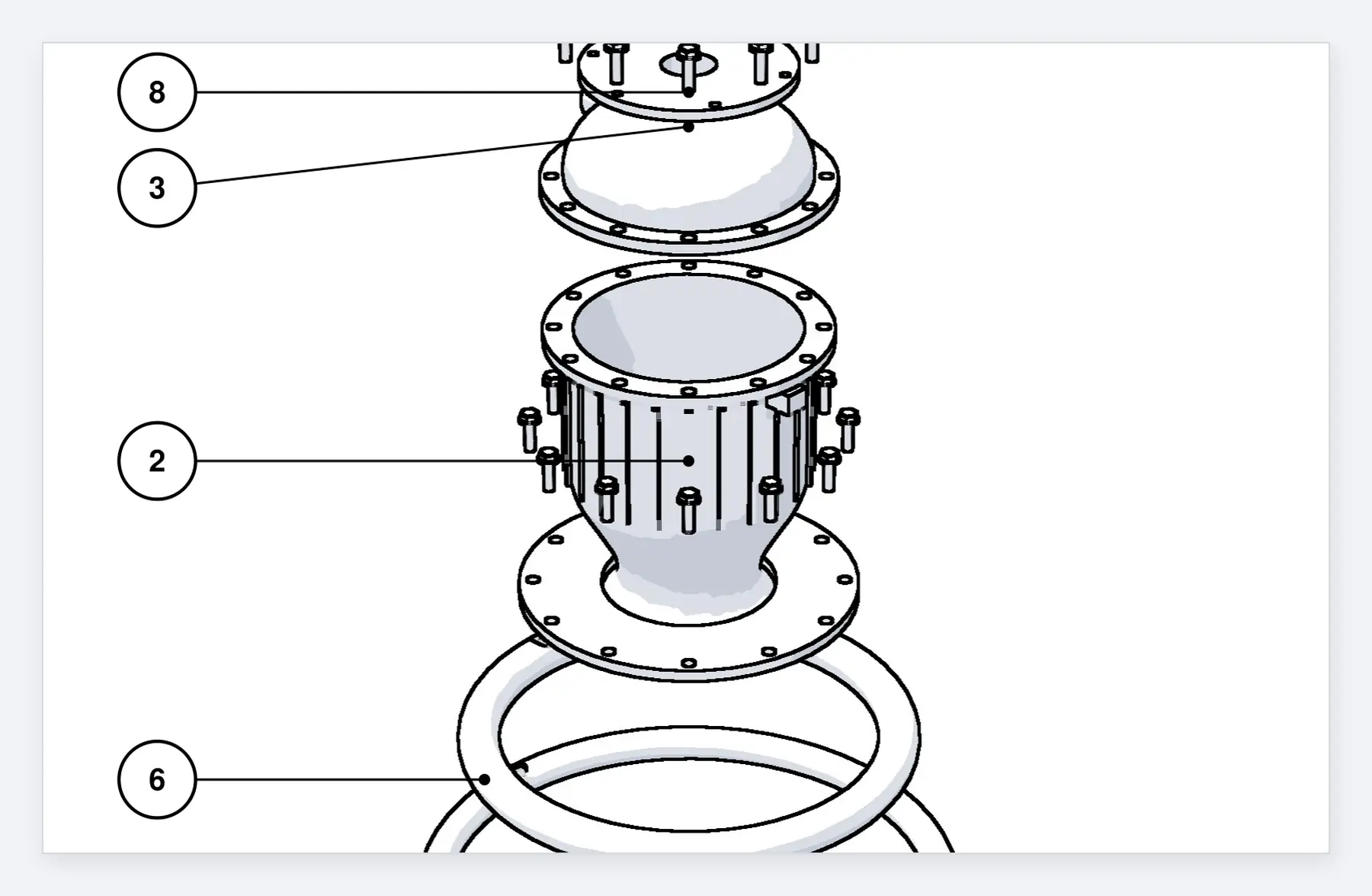
There is one balloon per row of the list, showing the number, the reference, or the reference with its description. They place themselves at the sides of the drawing without overlapping and without their leader lines crossing. If you want one elsewhere, drag it and it stays. You can hide the ones you don't want on a sheet; the list stays complete.
In the engine above, 41 parts fit in 9 balloons: the 24 identical M12 bolts are one row of the list and get a single balloon.
The bill of materials
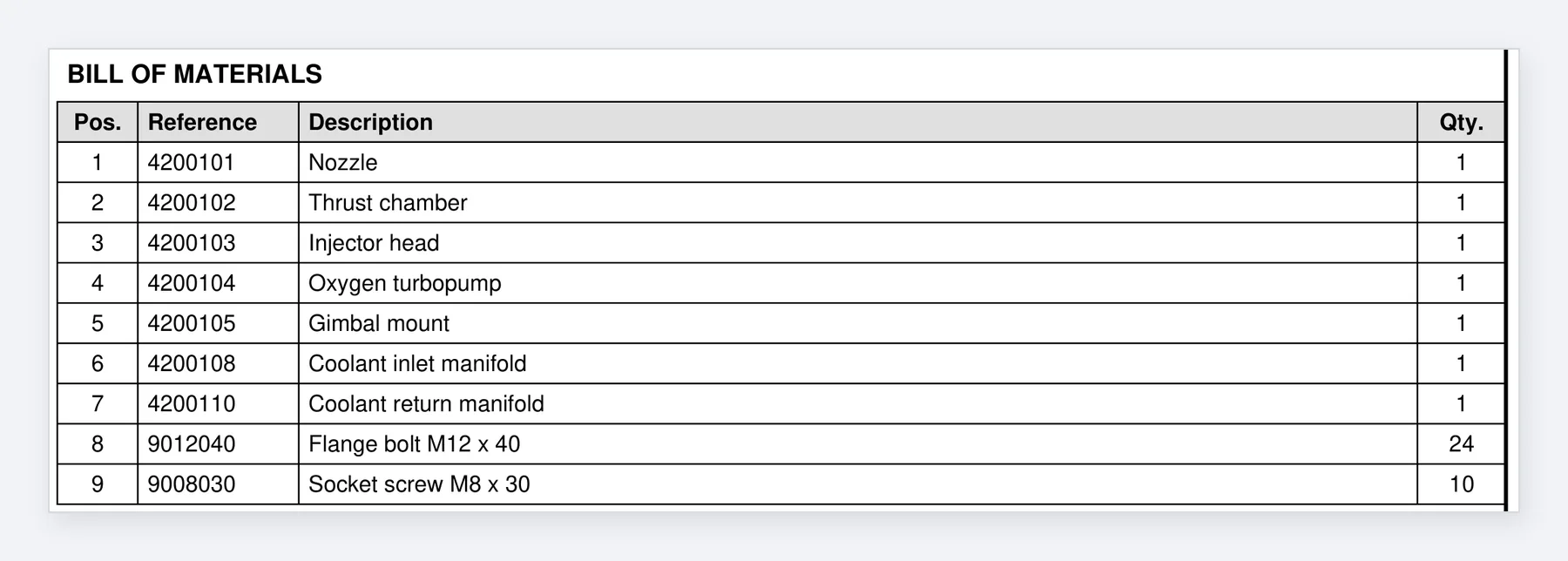
The list comes from the assembly itself, with a level of detail you set: how deep each part or subassembly counts as one line. Parts with the same reference and finish are grouped. It is covered in detail in Bill of materials (BOM) from a STEP file.
In the example, each name in the STEP file starts with a seven-digit code ("4200101 Nozzle"): the list separates the reference from the description, and the assembly's code goes into the title block.
Several sheets in one exploded view
Each sheet has its own view, explosion and balloons: the complete assembly, the detail of a mechanism, the hardware on its own. The order of the sheets is the order of the PDF pages, and each carries "Sheet X of Y" in the title block.
What the sheet looks like
- Paper: A3 landscape by default, or A4.
- Layout: the drawing on the left, the list on the right and the title block bottom right. If the list does not fit, it continues on "Bill of materials (cont.)" pages with the header repeated.
- Title block: assembly and reference (from the STEP root or the file name), sheet title, date, revision, author and, if you want, your logo as a PNG or JPEG up to 1 MB.
- The drawing is an image at 300 ppi (150 or 200 if you prefer a lighter file); the list and title block are real text. The file name comes ready, with the reference and the date.
- If what you need is vector drawings to lay out, that is the assembly manual, which comes out as a vector PDF.
What your STEP needs
An assembly STEP, with its parts as components. Any CAD program exports it, or a supplier or customer sends it. If the file arrives as a single body there are no parts to separate: ask for the assembly version. Up to 50 MB it opens without warnings; between 50 and 64 MB it may take a while; above that it is rejected before it is uploaded, because the server would not open it in time.
What it is used for
- Engineering offices: the sheet for manufacturing, purchasing and inspection, from the STEP you already have.
- After-sales and spare parts: the exploded view of each product with its references, for the catalog and for resolving an incident.
- Presentations: a clean sheet for a quote, a data sheet or a tender.
Frequently asked questions
What is an exploded view?
A drawing of an assembly with its parts pulled apart along their assembly axes, to show how they fit. More in what an exploded view is and how to read one.
How do I make an exploded view from a STEP file?
Open the STEP, check the bill of materials, choose how the parts separate and download the PDF. There is nothing to model or draw.
How much does it cost?
The exploded view is free.
What happens to my STEP?
If you make a manual, it is kept with it in your account, so you can open and edit it; it is not shared with anyone and you can delete it whenever you want. Only the author and logo of the title block are remembered, in this browser.
Can I edit the PDF of the exploded view?
The text (the list, the title block) is real text and can be edited. The drawing is an image at 300 ppi, so it is not editable line by line. If you need vectors, use the assembly manual.
What if my STEP arrives flattened, with no parts?
A STEP exported as a single body does not keep where each part is. Ask whoever exported it for the assembly with its components.
Can I continue another day?
Yes. "Save project" creates a .composer.json file with your settings, corrections, sheets and steps. The STEP is not inside: open it again and you continue where you left off.
Can I add my logo and details?
Yes: logo (PNG or JPEG up to 1 MB), author and revision in the title block.
Is this a spare-parts catalog for a car or a machine?
No. Composer makes the exploded view of an assembly that you already have as a STEP file, that is, of a product that you design or manufacture. It does not hold catalogs of spare parts.
Do I have to upload the parts one by one?
No. You upload one STEP: the one of the whole assembly, exported from the assembly, with all its parts inside. Composer separates and lists them itself. If you export part by part, each file opens as a separate product.
How do I get the exploded view of a SOLIDWORKS, Inventor or Fusion assembly?
Export the whole assembly as a STEP file from your program (Save As or Export, in AP214 or AP242) and open it in Composer: it separates the parts, places the balloons and makes the list, without drawing anything.
Next
- Assembly instructions from CAD: one line or color drawing per step, as a vector PDF.
- Bill of materials (BOM) from a STEP file.