
Scanner guide
Creality Scan to STEP: from a CR-Scan mesh to a CAD solid
Creality Scan to STEP is a conversion Creality Scan does not do itself: it exports meshes as STL, OBJ or PLY, and point clouds. Export the mesh, upload it to OperGo Surface and download a STEP your CAD opens as a solid, after checking how far it departs from your scan.
STL, OBJ, PLY, 3MF or AMF · in millimeters
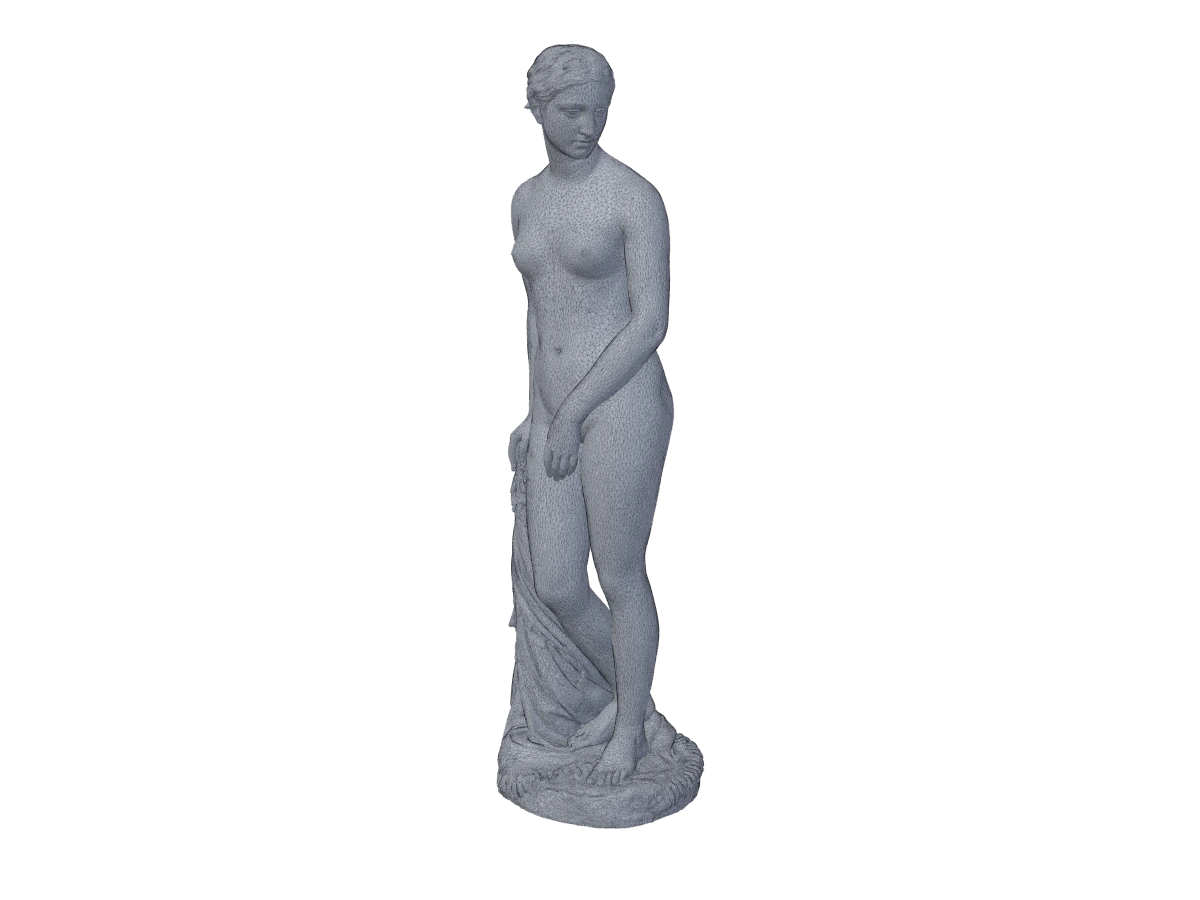 Before
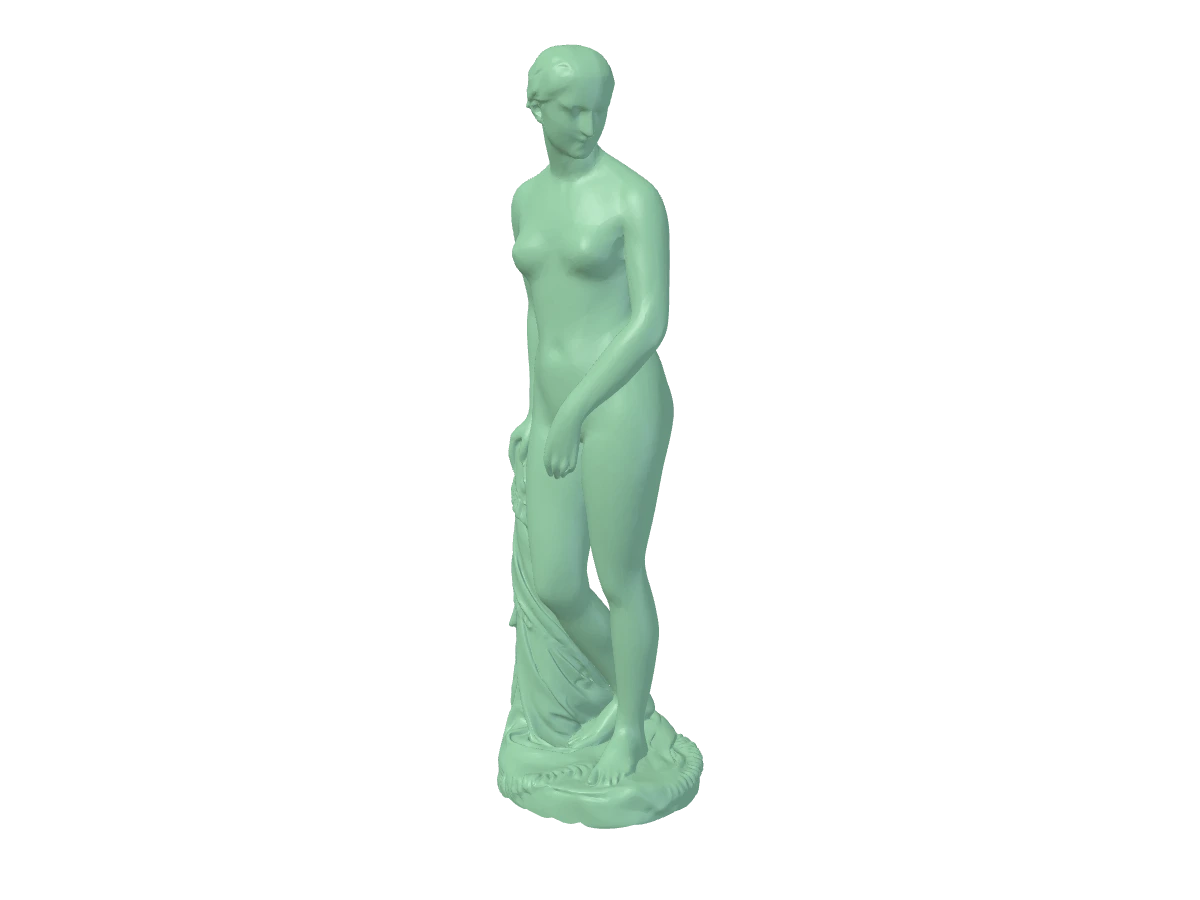 After
Which Creality scanners this covers
The Creality scanners on sale in October 2026 save their scans through Creality Scan: the CR-Scan Raptor, Raptor Pro and RaptorX, the Otter and Otter Lite, the Ferret Pro, the Pika and the Sermoon range. Whichever model made the scan, what comes out is a mesh.
Creality itself says it in the FAQ of one of its scanners: a scan "can be converted into a step through third-party software". A mesh is triangles that follow the surface; a STEP describes surfaces and solids. See STL vs STEP for the difference.
What Creality Scan exports, and which file to upload
| Format | What it holds | For OperGo Surface |
|---|---|---|
| STL | The mesh, no color | Yes. The simplest choice |
| OBJ | The mesh | Yes. Only the shape is used |
| PLY | The mesh, or a point cloud | Yes, as a mesh. A point cloud has no triangles |
| ASC | Points only | Not read. Export the mesh |
Export formats from the Creality wiki pages of the Raptor, Otter, Pika and Sermoon scanners, checked on 26 October 2026. 3MF appears there only for uploads to Creality Cloud.
From Creality Scan to STEP
Turn the point cloud into a mesh
Finish the model in Creality Scan before you export. A point cloud alone has no surfaces to convert.
Remove the turntable and the table
Cut away anything that was scanned with the part, in Creality Scan or after uploading.
Export STL, OBJ or PLY
Pick the mesh, not the point cloud. If your scan has color, the STEP keeps the shape only.
Upload, pick the mode and check
A whole object converts as a Closed part and gives a solid; a scan of one side gives an Open surface. Look at the deviation map, then download the STEP.
Common problems with Creality scans in CAD
These are the ones users report when they take a scan to CAD.
- The CAD does not open PLYSome CAD programs do not read PLY or ASC files. OperGo Surface reads PLY meshes, so you can upload the file you already have.
- The part comes out at the wrong sizeAn STL stores no units. OperGo Surface reads it in millimeters; if the part is 25.4 times off, turn on "Is your file in inches?".
- Too many triangles to make a solidA dense scan is hard for CAD software to turn into a solid, and when it works you get one flat face per triangle. See faceted vs smooth STEP.
- HolesA hole is a place the scanner could not see. You decide: close it to get a solid, or keep the part open and get a surface.
Questions about Creality Scan to STEP
Can Creality Scan export STEP?
No. Creality Scan exports meshes as STL, OBJ and PLY, and point clouds as ASC and PLY. A STEP comes from converting the mesh.
Which Creality file should I upload?
STL is the simplest. OBJ and PLY work too. Export the mesh, not the point cloud.
Does it work with Raptor, Otter, Ferret and Pika scans?
Yes. They all save through Creality Scan, and what matters is the mesh, not the model that made it.
Can I convert a Creality scan to Fusion 360?
Convert it to STEP first and open the STEP in Fusion as a solid. To convert the mesh inside Fusion instead, see Fusion 360 mesh to solid.
Is OperGo part of Creality?
No. Creality and its product names belong to their owner, and OperGo is not affiliated with it.
Related guides
3D scanner to STEP
3D scanner to STEP: scan software exports a mesh, not a STEP. What Revopoint, Creality, Shining 3D, 3DMakerpro and phone apps export, and how to convert it.
3D scan to CAD
3D scan to CAD in plain terms: what a scanner gives you, which mode fits your scan, how to prepare it, and how to check the STEP you get.
Faceted vs smooth STEP
Faceted vs smooth STEP: a faceted STEP has one flat face per triangle. Check your file in a minute and learn how to get smooth surfaces instead.
STL to solid in Fusion 360
Fusion 360 mesh to solid: convert an STL with Convert Mesh, pick the right method, and fix the usual failures (surface body, compute failed).
OBJ to STEP
Convert OBJ to STEP online. Upload your OBJ file, check the result in 3D against your mesh, and download a STEP your CAD can open.
Convert STL to STEP
Convert STL to STEP online. Smooth surfaces, and exact planes and cylinders on CAD parts, not one flat face per triangle. Check the result before downloading.
Put your Creality scan to the test
Upload the mesh from Creality Scan and see the result in 3D next to it. Viewing is free at every quality.