
Guide
3D scan to CAD: from a mesh to a STEP file
A 3D scan to CAD takes two steps: the scanner gives you a mesh, and the mesh then becomes a STEP file your CAD can open. Most of the decisions are in the second step: which result you need, what to do with holes, and how to check the result.
STL, OBJ, PLY, 3MF or AMF · in millimeters
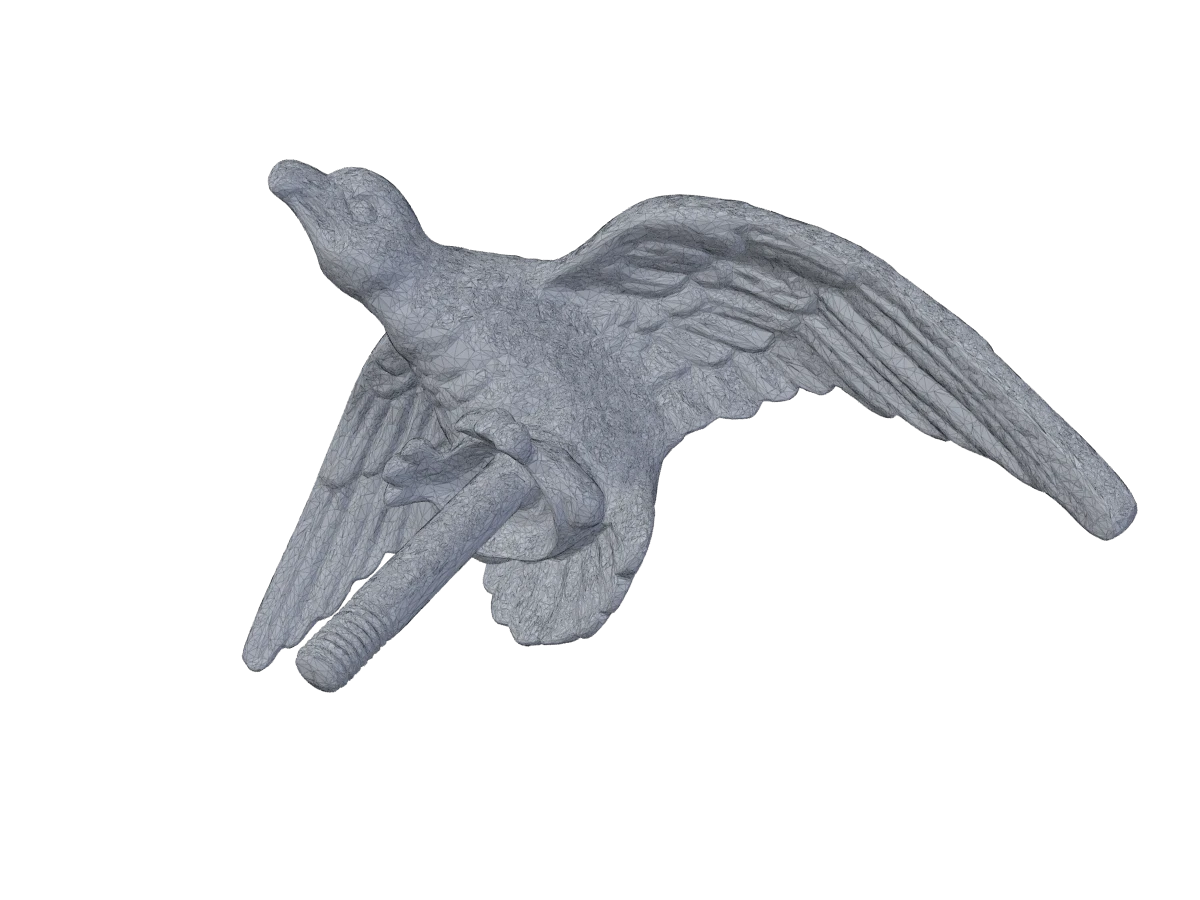 Before
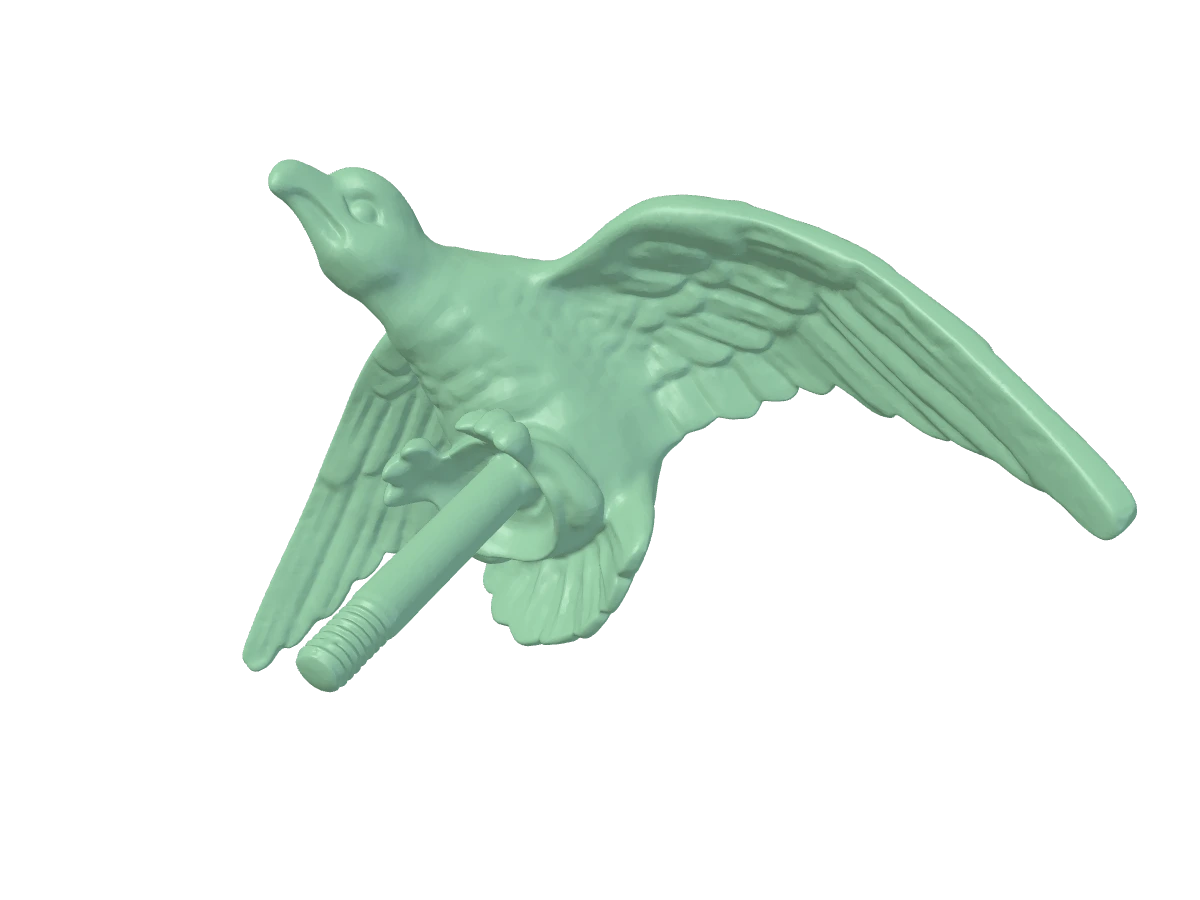 After
What a scanner gives you
A scanner does not give you a CAD model. It gives you a mesh: triangles that follow the surface it measured, usually as an STL, OBJ or PLY file. See what each 3D scanner exports. The mesh has no planes, cylinders or dimensions in it.
To work on that shape in CAD you need surfaces and solids, which is what a STEP file holds.
What do you want from the scan?
The answer decides how much work you need.
- A referenceYou want to place the scan next to a design and measure against it. A mesh may be enough.
- A replacement partYou want to make the part again. You need a solid with surfaces a machine can follow, and the dimensions that matter checked on the real part. See can you CNC machine an STL file.
- A redesignYou want to change the part. You need a solid in your CAD that you can cut, add to and combine with other parts.
Which mode fits your mesh
OperGo Surface proposes a mode based on your file. You can switch and compare, because viewing the result is free.
| Your mesh | Mode | What comes out | What to check |
|---|---|---|---|
| A closed scan: a housing, a knob, a figurine | Closed part | A solid of smooth surfaces that follows the mesh | The deviation map, at thin walls and small details |
| A scan with a few holes you want closed | Closed part, closing the holes | A solid | The closed areas: they were not measured, so their shape is not scanned shape |
| A partial scan, one side only, or gaps that must stay open | Open surface | A surface; holes are not filled | The edges of the surface |
| A mesh exported from CAD software, not scanned | CAD part | Exact planes, cylinders and holes | Hole diameters and flat faces in your CAD |
| You are not sure | The one proposed | Compare two modes before you download | The maximum deviation of each |
Prepare the scan before you upload it
Remove what is not the part
Cut away the fixture, turntable or table that was scanned with it. A raw scan with leftovers of the fixture, or with large holes, needs cleaning before it converts well.
Look at the holes
A hole in a scan is a place the scanner could not see, not a hole in the part. If it covers an area you need, scan that area again.
Check the units
The file is read in millimeters. If your scan software exported inches, turn on "Is your file in inches?".
Export a mesh
STL, OBJ, PLY, 3MF or AMF all work. Upload it and the tool shows you the part.
Noise and holes
Noise is the grain a scanner leaves on a surface: tiny irregularities that are not in the real part. The result follows your mesh, so the deviation you see includes it.
You decide what happens to holes and loose bits. Before converting, the tool lists what it found, such as small cracks, loose fragments and holes, and nothing changes unless you turn it on. You can close the holes to get a solid, or keep the part open and get a surface that does not fill them.
Resolution and deviation
For a Closed part or an Open surface you choose the resolution: how many surfaces the result is made of. Normal quality is resolution 600 and downloads free, with a daily limit; Fine and Custom quality go higher.
Every result comes with a map of where it departs from your mesh and its maximum deviation. If an area you care about is too far off, try a higher resolution or another mode and compare. A CAD part does not depend on resolution.
Real conversions
A closed wing converted as a Closed part and an open cap as an Open surface. The figures come from the real conversions.
A wing with an airfoil profile
Closed part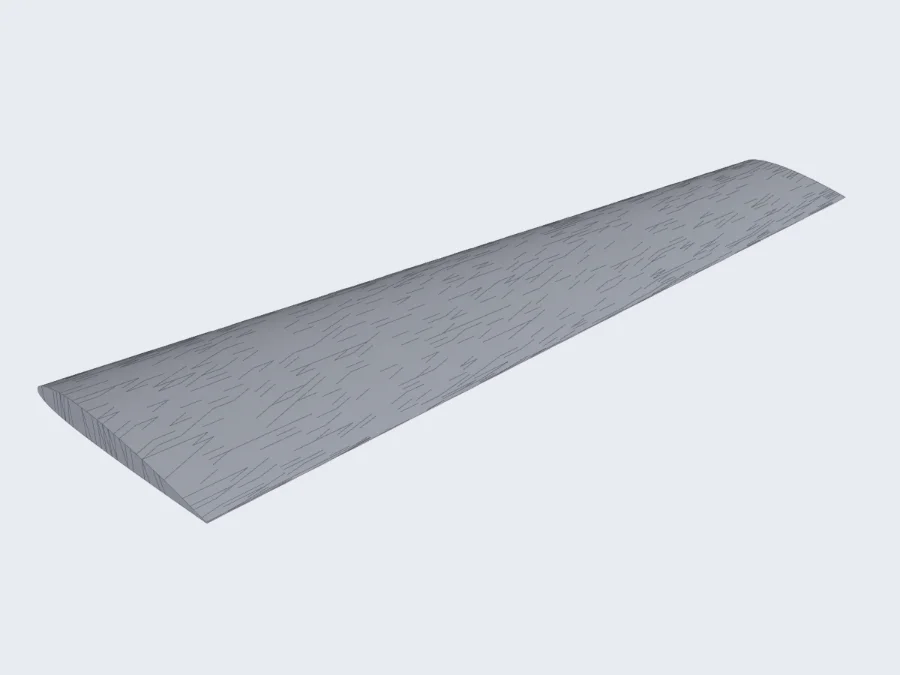
Before 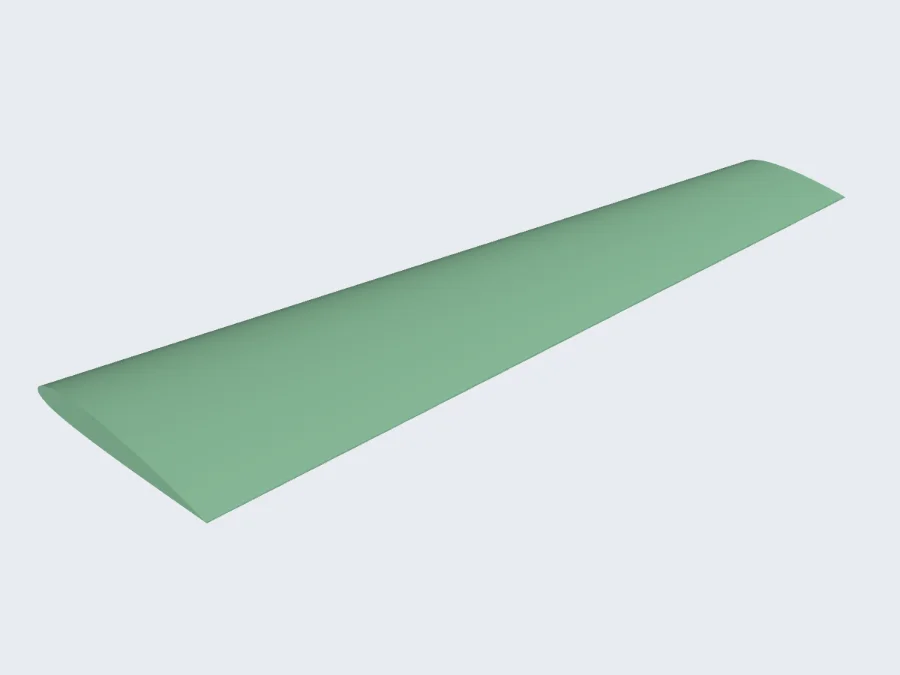
After 7,868 triangles → resolution 622 · maximum deviation 0.02 mm
An open spherical cap
Open surface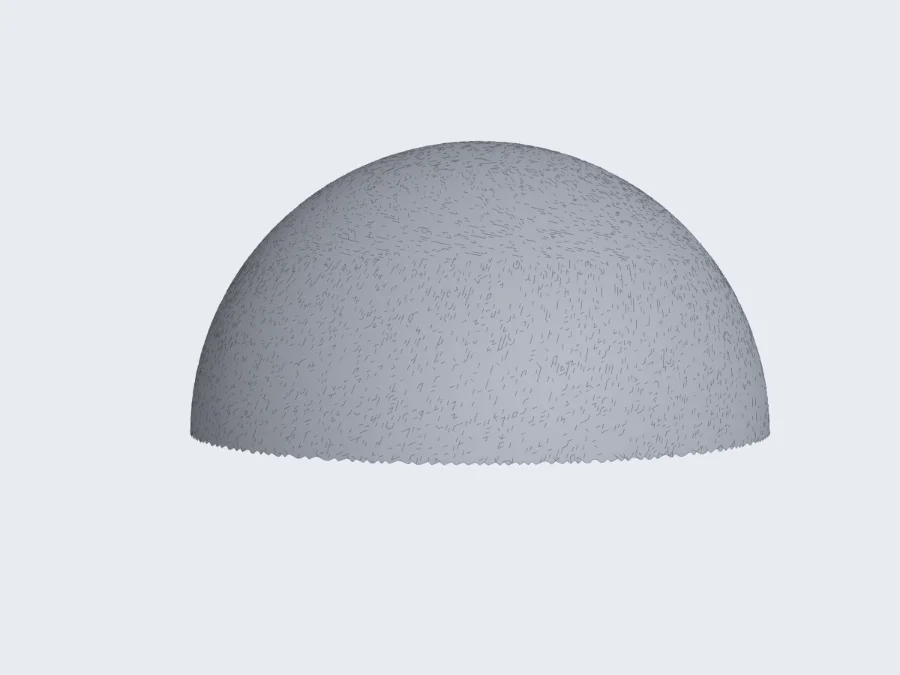
Before 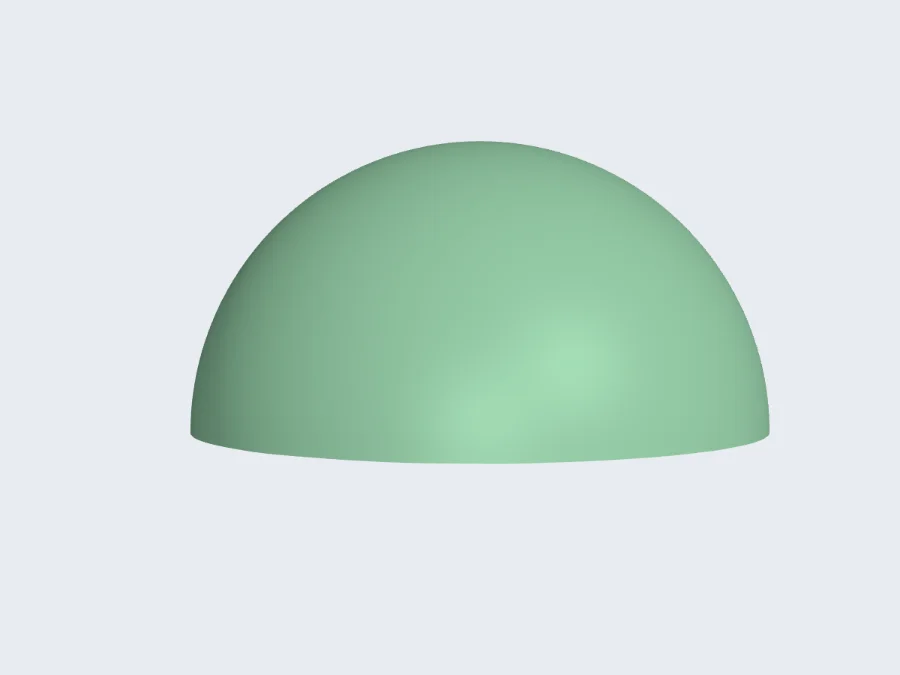
After 92,808 triangles → resolution 609 · maximum deviation 0.21 mm
Questions about 3D scan to CAD
What file does a scanner give?
Most scanners export a mesh as an STL, OBJ or PLY file. OperGo Surface reads those, plus 3MF and AMF, and gives you a STEP file.
Can I convert a noisy scan?
Noise is normal in a scan. The result follows your mesh, and the maximum deviation from it is shown before you download. A very rough raw scan may need cleaning first.
How accurate is the result?
You do not have to take a number on trust: you see the result in 3D against your original mesh, with a map of how far it departs and the maximum deviation, for example 0.15 mm on the knob example. Remember that the mesh itself is only as accurate as the scan.
Is a 3D scan to STEP conversion the same as a 3D scan to CAD model?
You get a STEP file with solids and surfaces, which any CAD program that reads STEP opens. It is not a parametric model, so you edit it by adding and cutting, not by changing sketch dimensions.
Should I convert a scan as a CAD part?
No. CAD part is meant for a mesh exported from CAD software, where planes and cylinders are clean. A scan converts as a Closed part or an Open surface, with smooth surfaces that follow it.
Related guides
Convert STL to STEP
Convert STL to STEP online. Smooth surfaces, and exact planes and cylinders on CAD parts, not one flat face per triangle. Check the result before downloading.
3D scanner to STEP
3D scanner to STEP: scan software exports a mesh, not a STEP. What Revopoint, Creality, Shining 3D, 3DMakerpro and phone apps export, and how to convert it.
STL vs STEP
STL vs STEP: an STL is a list of triangles that describes only the surface shape; a STEP holds exact surfaces and solids a CAD can measure and edit.
Faceted vs smooth STEP
Faceted vs smooth STEP: a faceted STEP has one flat face per triangle. Check your file in a minute and learn how to get smooth surfaces instead.
Can you CNC an STL file?
Can you CNC an STL file? Sometimes, but an STL is only triangles. What machining needs, how to turn an STL into a STEP, and what to send for a quote.
OBJ to STEP
Convert OBJ to STEP online. Upload your OBJ file, check the result in 3D against your mesh, and download a STEP your CAD can open.
3MF to STEP
Convert 3MF to STEP online. Upload your 3MF file, check the result in 3D against your mesh, and download a STEP your CAD can open.
Put your scan to the test
Upload the mesh and see the result in 3D next to it. Viewing is free at every quality.