
Guide
3D scanner to STEP: what your scanner exports and how to convert it
Going from a 3D scanner to STEP takes one step the scanner does not do: the scan software of every consumer scanner we checked exports a mesh (STL, OBJ, PLY or 3MF), not a STEP file. Export that mesh, convert it to a STEP solid, and check how far the result departs from your scan before you download it.
STL, OBJ, PLY, 3MF or AMF · in millimeters
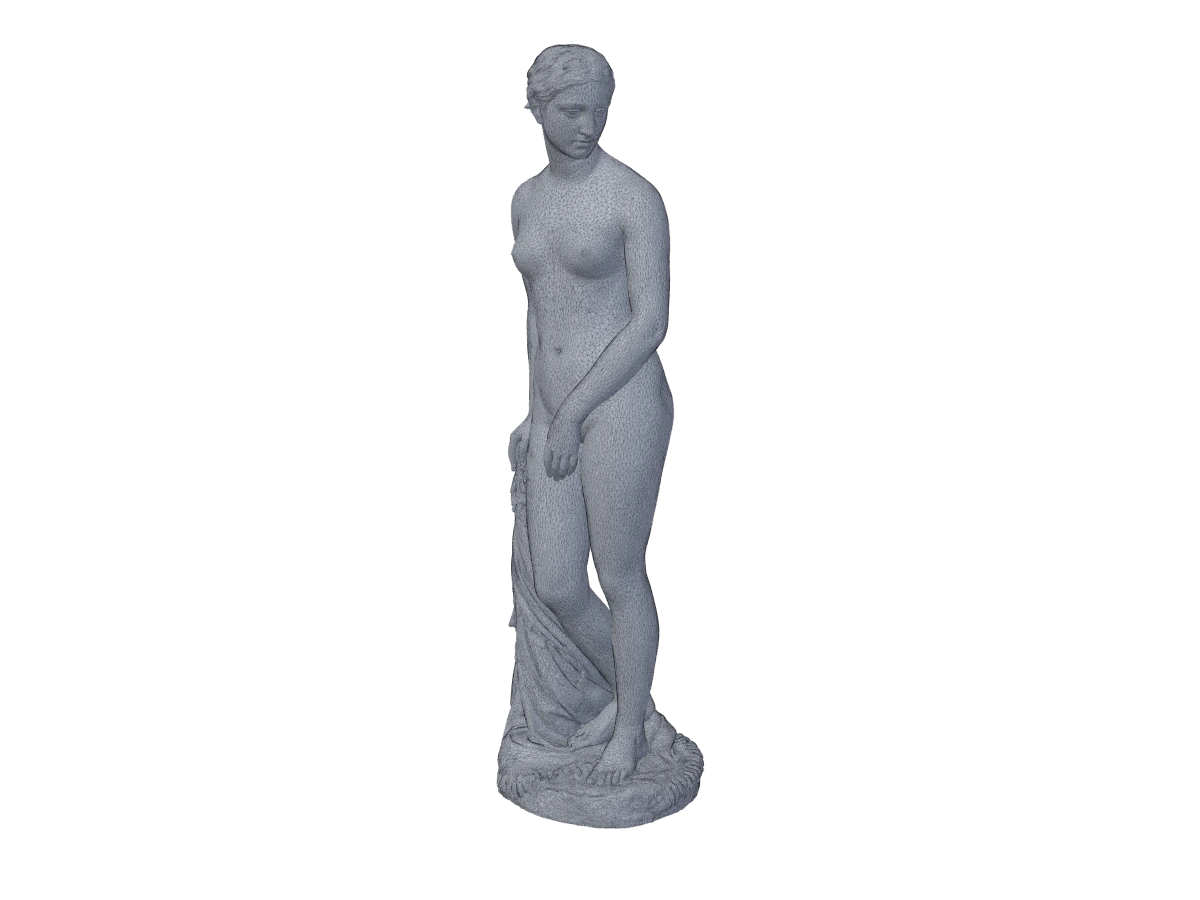 Before
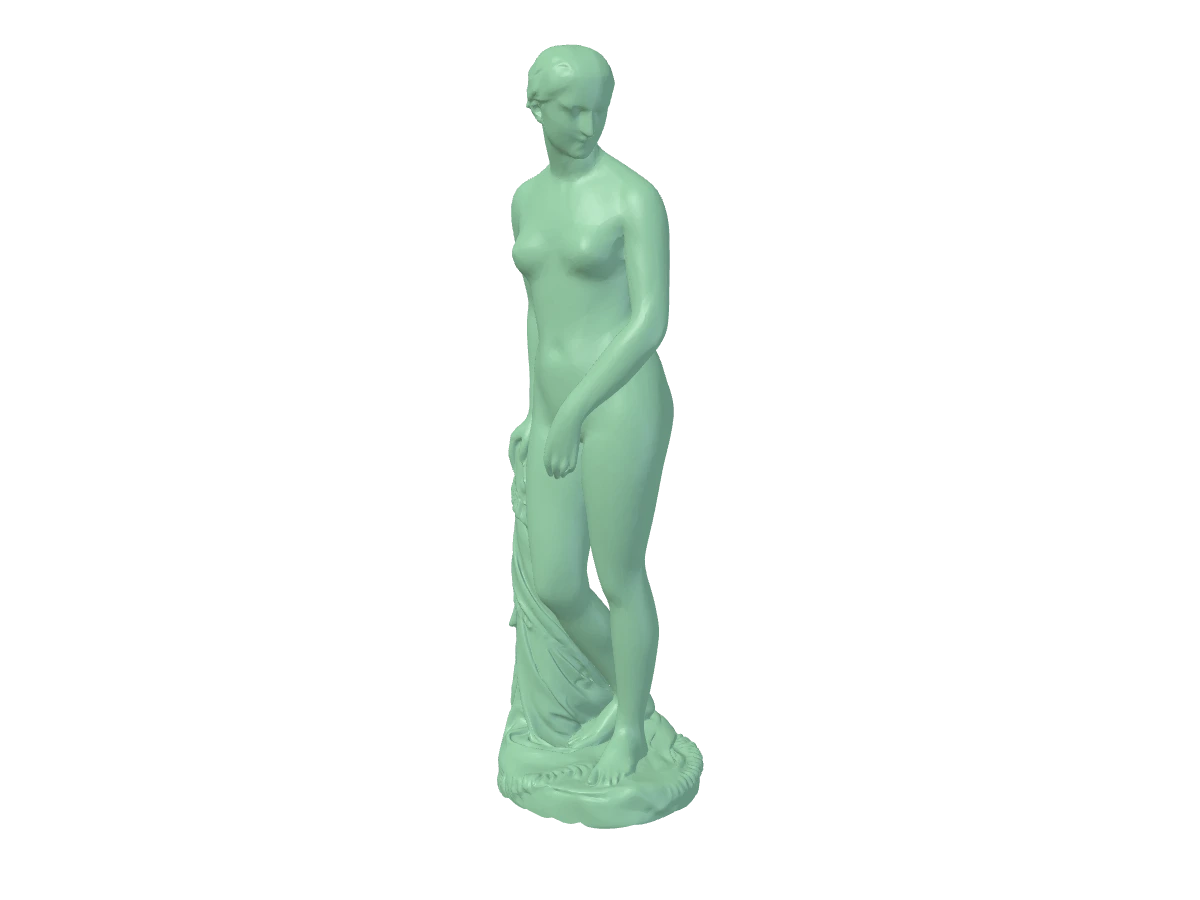 After
What each scanner software exports
The mesh formats each maker lists for its scan software. OperGo Surface reads STL, OBJ, PLY, 3MF and AMF.
| Scanner | Scan software | Mesh formats it exports | Guide |
|---|---|---|---|
| Revopoint: POP, MINI, INSPIRE, MIRACO, MetroX, MetroY, Trackit, RANGE | Revo Scan, Revo Metro, Revo Track | STL, OBJ, PLY, 3MF, GLTF, FBX | Revopoint to STEP |
| Creality: CR-Scan Raptor, Otter, Ferret, Pika, Sermoon | Creality Scan | STL, OBJ, PLY | Creality Scan to STEP |
| Shining 3D: Einstar 2, Einstar Rockit, Einstar Vega | EXStar Hub, StarVision | STL, OBJ, PLY, and 3MF on Rockit and Einstar 2 | Einstar to STEP |
| 3DMakerpro: Seal, Moose, Toucan, Turtle | JMStudio | STL, OBJ, PLY | 3DMakerpro to STEP |
| Bambu Lab S1 (announced for November 2026) | Not announced yet | Not published yet | Bambu Lab S1 scan to STEP |
| Elegoo M1 Ultra (on sale since 29 October 2026) | ELEGOO SCAN | STL, OBJ, PLY | Elegoo M1 Ultra scan to STEP |
| Phone apps: Polycam, KIRI Engine, Scaniverse, RealityScan | The app | Varies: OBJ, STL or PLY in most | Phone 3D scan to STEP |
From each maker documentation, checked on 26 October 2026, and on 30 October 2026 for Elegoo. Export lists change with software updates: check the export menu of your version.
Why a scanner gives you a mesh, not a STEP
A scanner measures points on the surface of a part and joins them into triangles. That is a mesh: it follows the shape, but it has no planes, cylinders or dimensions in it. Your CAD opens it as a mesh body, not as a solid you can cut and measure. The difference between STL and STEP is exactly that.
A STEP file describes surfaces and solids. Getting there from a scan is a separate step, and it is the step this guide is about. For the decisions that come with it, such as what to do with holes and which result you need, see 3D scan to CAD.
From scanner to STEP in four steps
Export a mesh from the scan software
Pick STL, OBJ or PLY. If the software also lists 3MF, that works too. Point cloud files such as ASC hold points without triangles, so export the mesh, not the point cloud.
Remove what is not the part
Cut away the turntable, the table and any fixture that was scanned with the part, in the scan software or after uploading.
Upload it and pick the mode
A scan of a whole object converts as a Closed part, and you get a solid. A scan of one side only, or with gaps that must stay open, converts as an Open surface. CAD part is meant for meshes exported from CAD software, not for scans.
Check the result and download
You see the result in 3D next to your mesh, with a map of how far it departs and its maximum deviation. Viewing is free at every quality, so you can compare modes before you decide.
What to check in your export
- UnitsAn STL file stores no units. OperGo Surface reads STL, OBJ and PLY in millimeters; if the part comes out 25.4 times too large or too small, turn on "Is your file in inches?".
- Scale on phone scansA scan made from photos can come out at the wrong size. Set the real scale in the app before you export, using a distance you measured on the part.
- The file typeGLB, GLTF, USDZ and FBX are not read. If your software offers them, choose OBJ, STL or PLY instead.
- ColorMany scanners capture color, and OBJ and PLY can carry it. The STEP describes the shape only: color and texture are left out.
Real conversions
A closed wing converted as a Closed part and an open cap as an Open surface. The figures come from the real conversions.
A wing with an airfoil profile
Closed part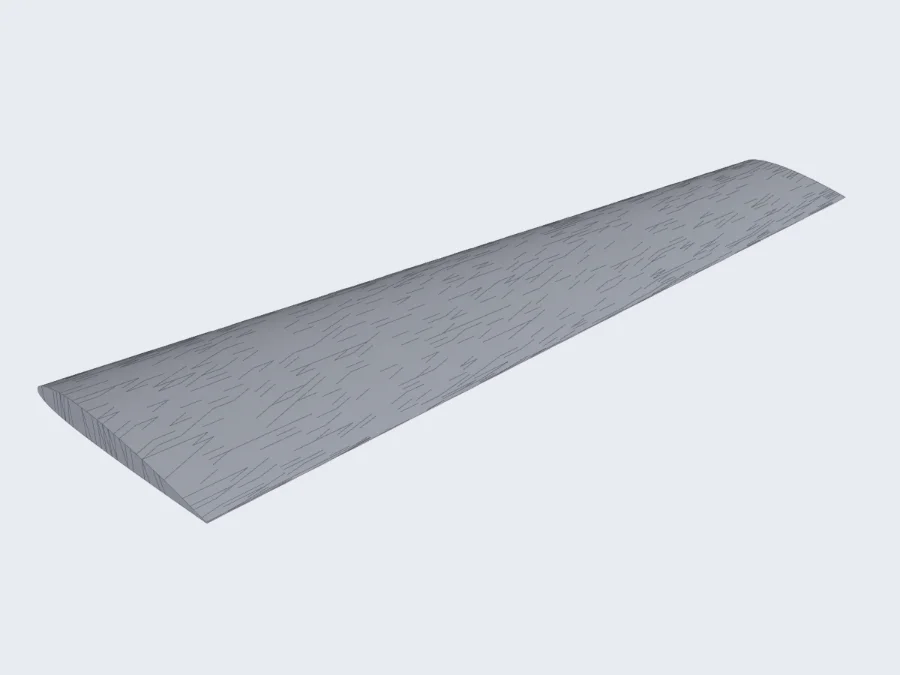
Before 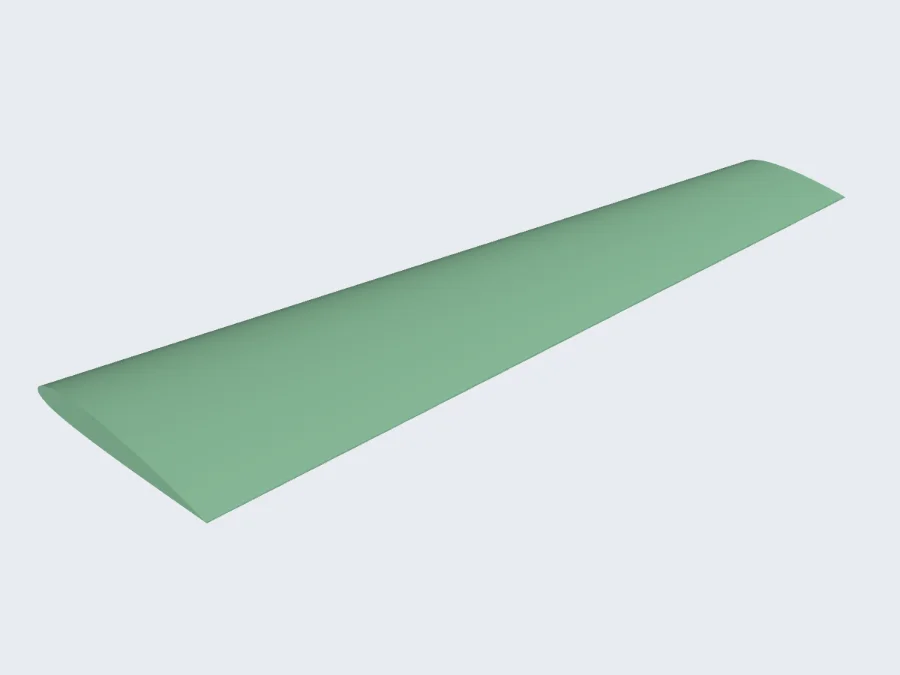
After 7,868 triangles → resolution 622 · maximum deviation 0.02 mm
An open spherical cap
Open surface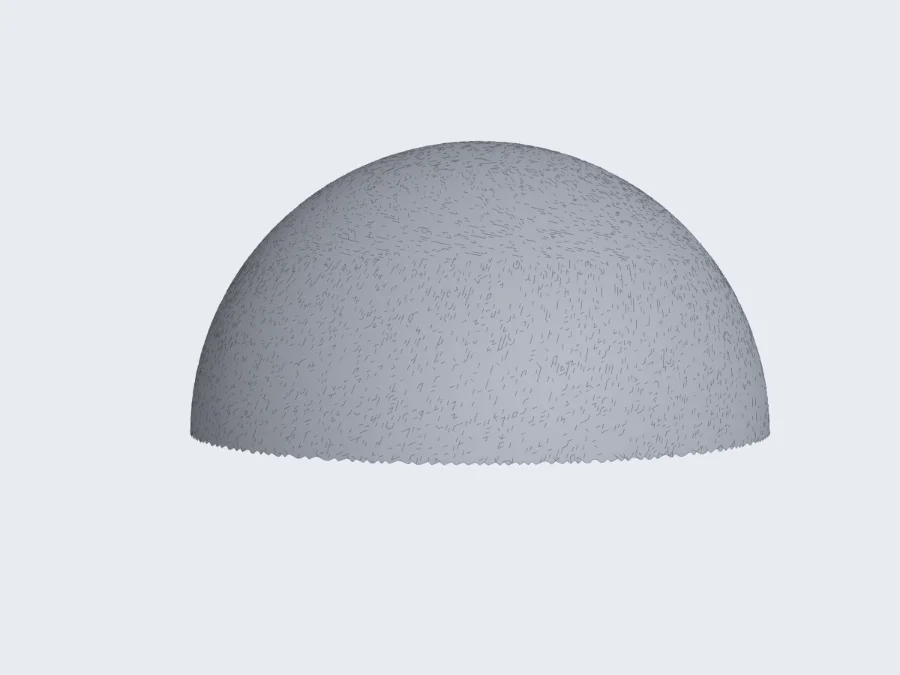
Before 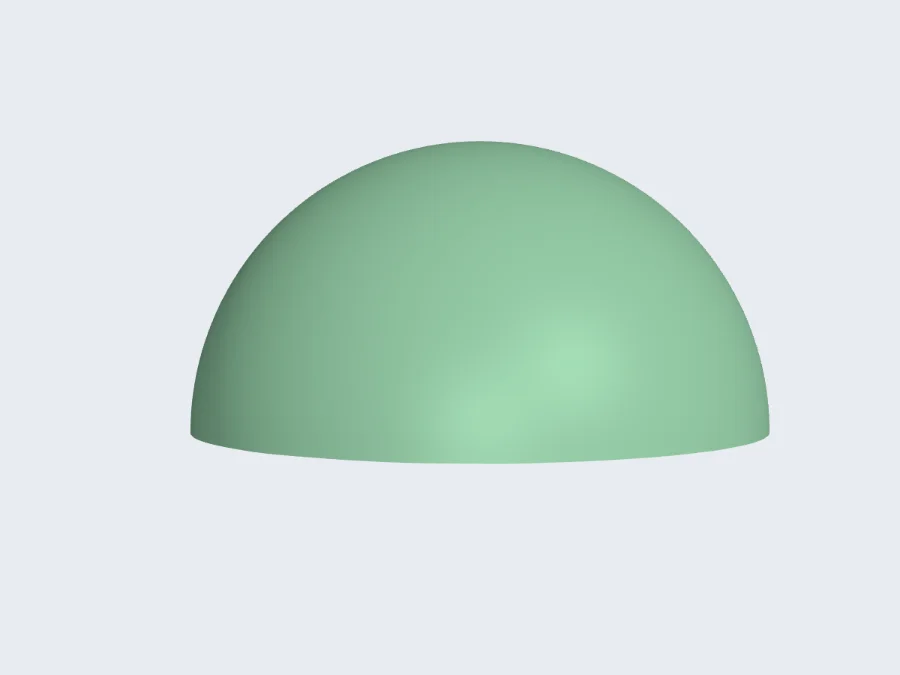
After 92,808 triangles → resolution 609 · maximum deviation 0.21 mm
Questions about 3D scanner to STEP
Can my 3D scanner export STEP directly?
Not from the scan software of the consumer scanners we checked: Revo Scan, Creality Scan, EXStar Hub, StarVision, JMStudio and ELEGOO SCAN export meshes and point clouds. A STEP comes from converting that mesh, with reverse engineering software or with a converter such as OperGo Surface.
Which format should I export from my scanner?
STL is the simplest, and all the scanner software we checked offers it; phone apps vary. OBJ and PLY work as well. Avoid point cloud formats such as ASC, and formats meant for viewers such as GLB or USDZ.
Is the STEP accurate to my part?
The STEP follows your mesh, and you see how far it departs before you download: a map in 3D and the maximum deviation. The mesh itself is only as accurate as the scan, so measure the dimensions that matter on the real part.
Is the STEP from a scan parametric?
No. It is a solid or a surface you can open in any CAD that reads STEP and edit by adding and cutting, but it has no feature tree or history.
Are these scanner makers part of OperGo?
No. The brand and product names belong to their owners, and OperGo is not affiliated with any of them. We name them only so you can find what your scanner exports.
Related guides
3D scan to CAD
3D scan to CAD in plain terms: what a scanner gives you, which mode fits your scan, how to prepare it, and how to check the STEP you get.
STL vs STEP
STL vs STEP: an STL is a list of triangles that describes only the surface shape; a STEP holds exact surfaces and solids a CAD can measure and edit.
Faceted vs smooth STEP
Faceted vs smooth STEP: a faceted STEP has one flat face per triangle. Check your file in a minute and learn how to get smooth surfaces instead.
OBJ to STEP
Convert OBJ to STEP online. Upload your OBJ file, check the result in 3D against your mesh, and download a STEP your CAD can open.
3MF to STEP
Convert 3MF to STEP online. Upload your 3MF file, check the result in 3D against your mesh, and download a STEP your CAD can open.
Convert STL to STEP
Convert STL to STEP online. Smooth surfaces, and exact planes and cylinders on CAD parts, not one flat face per triangle. Check the result before downloading.
Put your scan to the test
Upload the mesh from your scanner and see the result in 3D next to it. Viewing is free at every quality.